How to download YouTube videos on Android and iPhone
Open SaveTube →Use the tool in your browser without installing a SaveTube app. Start with a public video you have permission to download.
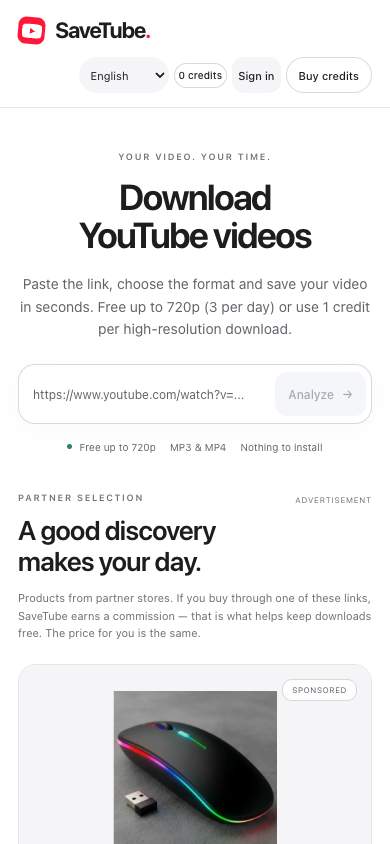
On Android
- Tap Share on YouTube and copy the video link.
- Open SaveTube in Chrome or another updated browser.
- Paste the link and tap Analyze.
- Choose MP4 and an available resolution, or select audio-only for MP3. Up to 720p and MP3 use the free daily allowance; higher resolution requires a credit.
- Tap download and confirm the transfer if prompted.
- Check Downloads in the browser or the device’s file manager.
On iPhone
- Copy the video link and open SaveTube in Safari.
- Paste, analyze and select an available format.
- Start the download. If Safari asks for confirmation, tap Download.
- Open Safari’s Downloads list to follow the transfer.
- Look for the file in the Downloads folder in Files. This can be in iCloud Drive or On My iPhone, depending on Safari’s settings.
The interface and location of the download button vary by iOS version. Apple’s instructions for finding iPhone downloads.
The video opened instead of downloading
Free downloads can open the video source directly. Use the download or save option provided by your browser. On some devices this appears in the player menu or Share menu. If no compatible save option is available, try another available format or an updated browser; behavior varies by version.
If it does not work, check
- Enough free storage and a working connection.
- A complete public video link without age or region restrictions.
- Your free daily allowance or credit balance for high resolution.
- A completed download before opening the file.
MP3 or MP4?
MP3 contains audio only. MP4 contains video and sound. Up to 720p can suit a small screen and reduce file size. The tool lists the formats it finds in the source.
Open SaveTube →Updated October 7, 2026.